Wireless Apple CarPlay is convenient, but connection problems like disconnections, audio stuttering, or pairing failures can be frustrating. The good news? Most issues are fixable with simple steps. Here’s what you need to know:
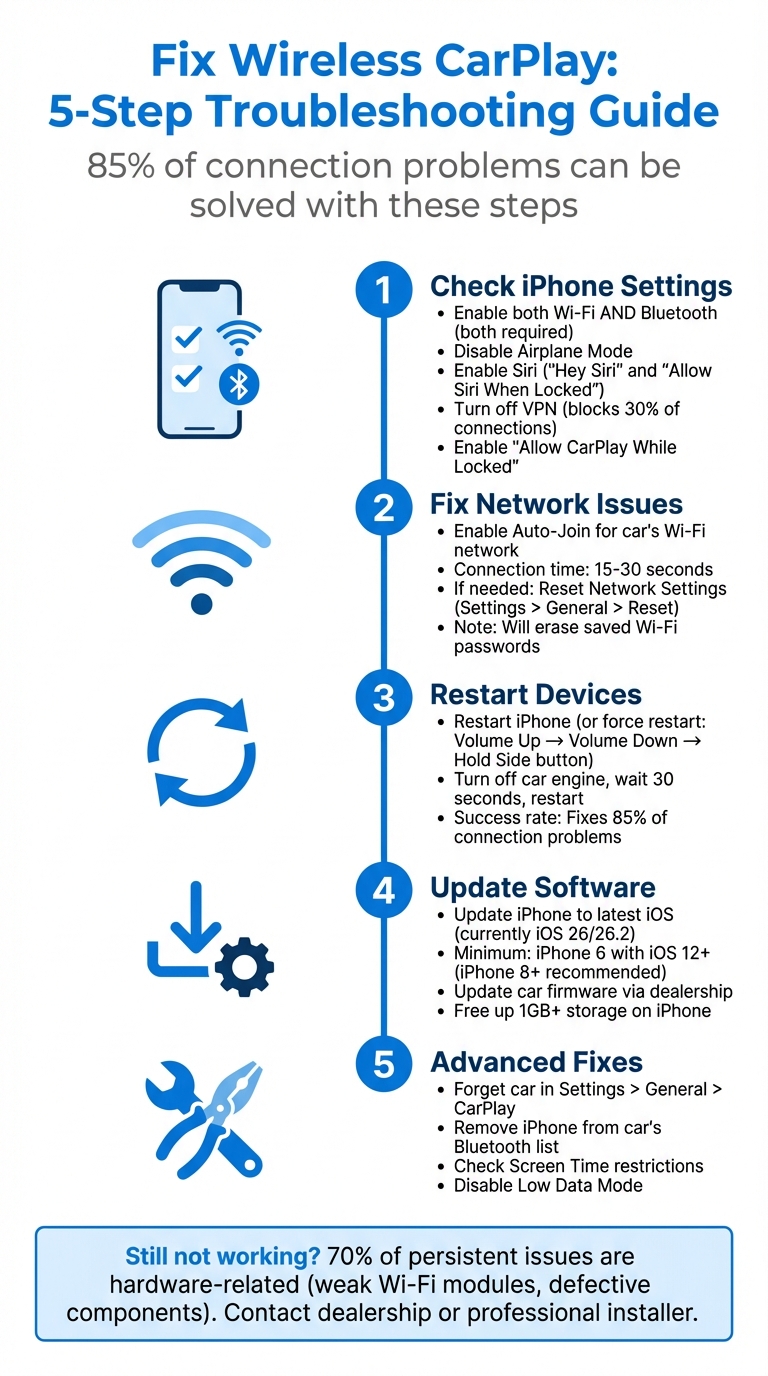
Check iPhone Settings: Ensure Bluetooth and Wi-Fi are on. CarPlay needs both for pairing and data transfer. Disable Airplane Mode and confirm Siri is enabled.
Fix Network Issues: Enable Auto-Join for your car’s Wi-Fi, and reset network settings if needed. VPNs often block connections – turn them off.
Restart Devices: Restart your iPhone and car system to clear glitches. If necessary, forget and reconnect your car in CarPlay settings.
Update Software: Keep your iPhone and car’s firmware up to date. Compatibility with newer iOS versions can resolve many problems.
Address Hardware Problems: If none of the above works, weak Wi-Fi modules or outdated car systems might be to blame. Professional help may be needed.
Wireless Apple CarPlay Troubleshooting Step-by-Step Guide
Basic Connectivity Troubleshooting
Check Wireless Settings on iPhone
Start by double-checking your iPhone’s wireless settings. For Wireless CarPlay to function, both Wi‑Fi and Bluetooth need to be active at the same time. Bluetooth handles the initial pairing, while Wi‑Fi takes care of the high-bandwidth data transfer required for apps and the interface.
"Wireless CarPlay uses Bluetooth for initial pairing and authentication, then switches to Wi‑Fi for data transfer. If either connection method fails, the entire system stops working." – Car Tech Studio
To verify this, open the Control Center by swiping down from the top-right corner (or swiping up from the bottom on older iPhones). Check that both the Wi‑Fi and Bluetooth icons are active. If either is grayed out, tap to activate it. Also, ensure Airplane Mode is disabled, as it turns off all wireless connections.
Siri is another essential component for CarPlay. If Siri isn’t enabled, CarPlay won’t start. Go to Settings > Siri & Search and toggle on both "Listen for ‘Hey Siri’" and "Allow Siri When Locked." Next, navigate to Settings > General > CarPlay, select your car, and make sure "Allow CarPlay While Locked" is turned on. This prevents disconnections when your iPhone’s screen times out.
Sometimes, Screen Time restrictions can interfere with CarPlay. If CarPlay disappears from your device list, check Settings > Screen Time > Content & Privacy Restrictions > Allowed Apps and ensure the CarPlay toggle is on. Additionally, VPN apps can block connections in about 30% of cases. If you suspect this is the issue, disable or remove VPN profiles by going to Settings > General > VPN & Device Management, as background VPN processes can disrupt the connection.
Once you’ve confirmed these settings, make sure your iPhone automatically connects to your car’s Wi‑Fi network.
Enable Auto-Join for Wi‑Fi
Your iPhone must have permission to automatically connect to your car’s dedicated Wi‑Fi network. While your car is running and CarPlay is trying to connect, go to Settings > Wi‑Fi and select your car’s network, which is often labeled with your car’s model or "CarPlay".
Tap the "i" (info) icon next to the network name and toggle Auto‑Join to the On position. This ensures your iPhone can seamlessly switch from the Bluetooth handshake to the car’s 5 GHz Wi‑Fi network without requiring manual input. The connection process usually completes within 15–30 seconds.
If Auto‑Join is already on but the connection still fails, the network cache might be corrupted. In this case, you can reset your iPhone’s network settings. Go to Settings > General > Transfer or Reset iPhone > Reset > Reset Network Settings. Be aware that this will erase all saved Wi‑Fi passwords, so you’ll need to re-enter them for any networks you use regularly, like at home or work.
sbb-itb-74b4b25
Wireless Apple CarPlay Not Working or Can’t Connect? How to Fix and Troubleshooting
Restart Devices and Reset Connections
Once you’ve confirmed your wireless settings are correct, the next logical step is to reset both your iPhone and your car’s system. Restarting these devices can solve roughly 85% of connection problems, as it clears minor software glitches and memory conflicts.
To restart your iPhone, power it off completely. If a standard restart doesn’t work, try a force restart: quickly press Volume Up, then Volume Down, and hold the Side button until the Apple logo appears. For your car, turn off the engine and wait at least 30 seconds before restarting. Certain models, like some Ford vehicles, may require holding the Power and Forward Skip buttons for 10 seconds to reset the system.
"Resetting CarPlay on both your iPhone and your car’s infotainment system is often the first and most effective troubleshooting step." – Ken Granger, SimplyMac
If restarting doesn’t fix the issue, clearing old connection profiles might help. Start by navigating to Settings > General > CarPlay on your iPhone, selecting your vehicle, and tapping "Forget This Car." Next, go to your car’s infotainment settings and remove your iPhone from its Bluetooth or connection list. This clears out any corrupted profiles or settings that might be causing the problem. When you reconnect, a fresh handshake between the devices is established.
Another quick fix is toggling Bluetooth and Wi‑Fi off and back on. Open the Control Center by swiping down from the top-right corner, disable both icons, wait a few seconds, and then re-enable them. If none of these steps work, it might be time to move on to advanced troubleshooting options.
Compatibility and Firmware Requirements
Once you’ve checked connectivity and reset your devices, it’s essential to confirm that both your iPhone and vehicle meet the necessary compatibility and firmware standards. Even with proper wireless settings and restarts, your devices must align with the minimum requirements for wireless CarPlay. For this feature to work, you’ll need an iPhone 6 or newer running iOS 12 or later, although iPhone 8 and newer models deliver the best performance. The most recent iOS versions are iOS 26 and 26.2. Ensuring compatibility prevents hardware or firmware limitations from causing persistent issues.
Check iPhone and Vehicle Compatibility
Your vehicle must support wireless CarPlay via both Bluetooth and a 5GHz Wi-Fi access point. It’s important to verify that your car is equipped with this hardware, as not all vehicles with touchscreens automatically include these features.
To check compatibility:
Look for a CarPlay or smartphone icon near your vehicle’s USB ports.
Consult your owner’s manual or visit the manufacturer’s website.
On your iPhone, go to Settings > General > CarPlay to see if your vehicle appears under "Available Cars".
Currently, over 800 car models support Apple CarPlay, and nearly half of car buyers now consider wireless CarPlay a must-have feature.
Update iOS and Vehicle Firmware
Keeping your iPhone and your vehicle’s infotainment system updated is crucial to avoid compatibility issues. Recent iOS updates, from iOS 18 to 26, have enhanced pairing speed and stability. However, these improvements often require corresponding updates on your car’s head unit. You can check for firmware updates through your dealership or the manufacturer’s website. Make sure your iPhone has at least 1GB of free storage to cache data and prevent "Device Not Responding" errors. If issues persist after updates, you may need to explore advanced troubleshooting steps.
Wired vs. Wireless Comparison Table
Feature
Wired CarPlay
Wireless CarPlay
Connection Method
USB Cable (MFi-certified)
Bluetooth & 5GHz Wi-Fi
Stability
Excellent/Very Stable
Prone to interference
Audio Latency
Minimal
Occasionally noticeable
Battery Impact
Charges the device
Drains battery unless using wireless charging
Convenience
Low (requires plugging in)
High (automatic connection)
Advanced Troubleshooting for Persistent Issues
When basic resets and connectivity checks don’t solve the problem, it’s time to dig deeper. Persistent wireless CarPlay issues often arise from interference, system settings, or corrupted configurations that standard fixes can’t handle.
Tackle 5GHz Wi‑Fi Interference
Wireless CarPlay relies on a 5GHz Wi‑Fi connection, which can be easily disrupted. External Wi‑Fi signals, nearby electronic devices, or active VPNs are common culprits. To minimize interference, try these steps:
Disable any active VPNs on your iPhone.
Turn off Low Data Mode to ensure an uninterrupted connection.
Delete other saved Wi‑Fi networks from your iPhone to prevent them from competing with your car’s network.
These steps can help stabilize the connection and reduce disruptions.
Review Screen Time and System Restrictions
Sometimes, system settings can block CarPlay from functioning properly. Double-check these settings to ensure everything is configured correctly:
Go to Settings > Screen Time > Content & Privacy Restrictions > Allowed Apps and confirm that CarPlay is enabled.
Under Settings > General > CarPlay, make sure Allow CarPlay While Locked is turned on.
These adjustments can resolve restrictions that might be silently interfering with your CarPlay setup.
Perform a Factory Reset on the Infotainment System
If nothing else works, resetting your vehicle’s infotainment system to factory settings might be necessary. Refer to your car’s owner’s manual for instructions. Keep in mind that this process will erase all saved data, including Bluetooth pairings and personalized settings, so proceed carefully.
Before resetting, it’s worth checking with your dealership for any Technical Service Bulletins (TSBs) related to your issue. Some problems might require a firmware update that only the dealer can install.
Professional Apple CarPlay Installation and Support
Sometimes, after trying every software fix in the book, the problem with CarPlay might boil down to hardware issues. As Car Tech Studio explains, "If you’ve tried all software solutions and CarPlay still doesn’t work reliably, hardware problems likely need professional diagnosis".
Surprisingly, over 70% of wireless CarPlay problems stem from hardware failures, such as weak Wi‑Fi modules, defective USB components, or wiring issues. If none of the standard troubleshooting methods resolve the problem, it’s time to consider a professional evaluation.
If your vehicle is still under warranty and CarPlay has never worked as it should, your dealership should be your first stop. Chevrolet Support advises, "If you have tried all troubleshooting steps and the issue persists, visit a dealership for further assistance". To make the process smoother, bring a detailed list of the steps you’ve already tried, like resetting the connection or updating the firmware.
Why Choose Auto Sound & Security
When software fixes don’t cut it, and hardware issues are suspected, professionals like Auto Sound & Security can help. They specialize in CarPlay installation and troubleshooting, offering solutions for vehicles with outdated systems or hardware problems. As authorized dealers for brands like Pioneer, Kenwood, JVC, and Alpine, they can install aftermarket head units with native wireless CarPlay support or integrate wireless adapters into your vehicle’s existing factory system. Their Premium and Custom packages are tailored to address compatibility challenges and ensure a smooth upgrade process.
Professional installers go beyond basic fixes. They can work around hardware limitations, configure systems to integrate seamlessly with steering wheel controls, and optimize Bluetooth-to-Wi‑Fi transitions. Auto Sound & Security serves a wide range of car brands, including BMW, Mercedes, Audi, Toyota, and Ford, and can diagnose complex physical issues that standard troubleshooting often misses. While most CarPlay issues – about 85% – can be resolved with systematic troubleshooting, the remaining cases typically call for hardware expertise.
Conclusion and Key Takeaways
Fixing wireless Apple CarPlay issues often starts with the basics. Double-check that your iPhone’s Bluetooth and Wi‑Fi are active, as these are essential for CarPlay to work – Bluetooth handles the initial pairing, while Wi‑Fi manages data transfer. Also, look into settings like Screen Time restrictions and VPN configurations, which might block the connection. Don’t forget to ensure the Wi‑Fi Auto-Join feature is enabled for your car’s network.
If everything seems fine but the problem persists, resetting the connection can help. Start by selecting "Forget This Car" on both your iPhone and your car’s infotainment system. Freeing up at least 1 GB of storage on your iPhone can also improve caching. Updating both your iPhone’s iOS and your vehicle’s firmware is essential, as outdated software often causes compatibility hiccups. Additionally, toggling network settings – like turning on Airplane Mode and enabling "Allow CarPlay While Locked" – can resolve minor glitches.
For more stubborn problems, hardware could be the culprit. Studies show that over 70% of wireless CarPlay issues are linked to weak vehicle Wi‑Fi hardware, outdated OEM software, or unreliable aftermarket adapters. Testing with another iPhone or using a different MFi-certified cable might help pinpoint whether the issue lies with your phone or your car’s system.
If software tweaks don’t fix the problem, it’s time to consider deeper system or hardware solutions. In cases like these, Auto Sound & Security can step in. They specialize in diagnosing tricky issues and offer tailored fixes, such as installing aftermarket head units with built-in wireless CarPlay or adding wireless adapters to your current setup. Their technicians focus on resolving compatibility issues and fine-tuning the switch between Bluetooth and Wi‑Fi, ensuring your CarPlay experience is smooth and reliable.
FAQs
Why does Wireless CarPlay need both Bluetooth and Wi‑Fi?
Wireless CarPlay relies on Bluetooth to handle the initial pairing process and device discovery. Once connected, Wi-Fi takes over for tasks like screen mirroring, audio streaming, and processing commands. This combination provides a reliable and efficient connection to ensure smooth operation.
What should I try first when Wireless CarPlay keeps disconnecting?
To troubleshoot, begin by reviewing your connection settings. Make sure both Wi-Fi and Bluetooth are turned on, as these are often the culprits behind disconnections. Next, check if your iPhone is updated to the latest iOS version. You can also try toggling the CarPlay setting off and back on within your car’s settings menu.
If the problem persists, disconnect your vehicle from CarPlay and reconnect it. For wired connections, consider testing with a different cable to rule out any hardware issues.
How can I tell if my car actually supports Wireless CarPlay?
To find out if your car supports Wireless CarPlay, first ensure it’s compatible with CarPlay and has wireless connectivity. You can check this information in your car’s manual or by contacting the manufacturer directly for confirmation.
We use cookies to ensure that we give you the best experience on our website. If you continue to use this site we will assume that you are happy with it.